Archive for the ‘Tutorials/Tips’ Category
PC-BSD is a desktop-centric distribution based on FreeBSD. The latest stable version, released just this week, is PC-BSD 8. On most Linux, desktop distributions, a connected printer is automatically configured. On PC-BSD 8, however, getting a printer to work requires manual configuration. To simplify that task, a number of printer management utilities are available. You may access the main printer management interface from System Settings > Printer Configuration, or just launch a browser and type http://localhost:631 into the address bar to access the CUPS Web (management) Interface. If you have an HP printer, the HP Device Manager is also available, accessible from Applications > Utilities > HP Device Manager.
You may also find the following articles useful: PC-BSD 8 review and PC-BSD 8 installation guide.
Box2D is an Open Source rigid body 2D physics engine for C++. It’s currently (2.0.1) released under the MIT license, which is quite permissive. Box2D is used by, among other things, Gluon (http://gluon.tuxfamily.org/), which is a game library from KDE in-the-making.
Integrating Box2D into your Qt application is quite easy, and this blog shows you how to get started. First of all:
- Step 1: Download Box2D from Google Code: http://code.google.com/p/box2d/
- Step 2: Build it (I had to insert a few #include <cstring> to get it to build)
- Step 3: Build and try the test bed application: Box2D/Examples/TestBed/
- Step 4: Read the manual: http://www.box2d.org/manual.html
- Step 5: Continue reading this blog to hook up the two frameworks…
PC-BSD 8 is the latest edition of PC-BSD, a desktop distribution based on FreeBSD, with KDE as its default desktop environment. It features a graphical installation program that should be easy enough for anybody to use. However, some sections of the installer could pose some difficulty to those new to the this distribution (and to the BSDs). If you belong to that user group, this installation guide is for you.
The screen shot shows all the options available for installation. You may choose to boot into the live environment, or just install straight to your PC’s hard drive. If you take no action, the default is to install to hard drive. For this tutorial, we want to install to hard drive.

Cloud computing is all the rage these days. But while the idea of using your browser to access your applications and documents sounds like a great idea on paper, in practice there are all kinds of reasons to stick to your desktop software. Take OpenOffice.org, for example. None of the available Web-based word processors can compete with Writer when it comes to features and flexibility. But even if you don’t subscribe to the idea of ditching OpenOffice.org in favor of a Web-based productivity suite like Google Docs or Zoho Docs, you can still put some useful Web-based services to some practical use.
Office applications like OpenOffice.org can bring out the worst in people. The same people who wouldn’t dream of driving a car without a few lessons will start pounding away in a word processor as though it were a typewriter, ignoring basic features like styles and templates. In the end, they may produce the documents they want, but only with far more effort than is necessary. They might as well be pushing a car instead of turning the ignition key.
Nothing stops you if you really want to format manually, any more than anything prevents you from using the soles of your shoes to slow down a car instead of the brake. OpenOffice.org does nothing to stop you from indenting each new paragraph in Writer or setting each number format in a Calc cell on its own. For small, unusual documents, manual formatting may even be quicker.
PC-BSD is a desktop-oriented, FreeBSD-based distribution with KDE as the default desktop environment. The version due to be released shortly is PC-BSD 8. Because it the only BSD-based desktop distribution that’s in a position to compete with the best Linux desktop distributions, I’ll be publishing a number of articles over the next few weeks to introduce those not yet familiar with it to some of its management tools. This post takes a look at the graphical firewall manager.
The firewall application on PC-BSD (8) is OpenBSD’s Packet Filter (PF). It is a very powerful firewall application with many advanced features and functionalities. At the command line, the rules are a lot easier to write and understand than Linux’s IPTables/Netfilter. Though simple and intuitive to use, the graphical firewall manager that will ship with PC-BSD 8 only gives you access to a very small subset of the many useful features and functionalities of PF.
In how to enhance the physical security posture of your PC, five physical security features were identified in that article. Here’s a summary of those features:
- Enable BIOS password
- Password-protect the bootloader
- Full disk encryption
- Use strong passwords
- Implement password aging
From this list comes the following star-rating system:
Openfiler is one of two free and open source NAS/SAN applications in active development (the other one is FreeNAS). By default, Openfiler is installed to hard disk using the traditional Linux disk partitioning system. Linux Logical Volume Manager (LVM) adds a layer of flexibility to disk space configuration and management that is not possible with the traditional method of disk partitioning. Fedora, Debian and Mandriva have installers with automatic LVM partitioning features. With Openfiler, however, your only option is by manual configuration. This tutorial offers a step-by-step guide to installing Openfiler on disk using LVM.
By default, Openfiler creates the following partitions – the sizes are in parenthesis:
- /boot (101 MB)
- swap (1020 MB)
- / (the rest of the disk space is allocated to the /, the main system partition)
Securing a computer goes beyond more than just using strong passwords. You should consider what happens if an unauthorized person gains physical access to your computer. If the only security feature protecting your data from an unauthorized person is a user account password, then you have not taken enough steps to protect your computer and your data. This article presents all the steps you could take to enhance the physical security of your Linux- or BSD-powered computer
- Set a BIOS Password – PC vendors generally configure their computers to boot from the hard disk, and failing that, to boot from the CD drive or other removable media. You can change this boot order by going into the BIOS setup. To prevent unauthorized persons from accessing the BIOS setup, you should enable the BIOS password. Enabling the BIOS pawword may also be used to prevent the system from booting.
Disk encryption in one of the most overlooked and underused security tools in computing. When most people think about securing a computer or the operating system that powers it, a firewall, anti-virus, and other anti-malware software comes to mind. Those are all good and necessary tools, but they are only concerned with network security. What about physical security? What happens if someone gains unauthorized, physical access to your computer? Even with all the fancy firewall and other network security tools running, If the disk is not encrypted, check mate! Your data is now shared.
Pardus is a desktop-oriented, Linux distribution. The latest release is Pardus 2009.1, and just like Pardus 2009, it comes with IPTables/Netfilter, the firewall application built in to the Linux kernel, disabled. This is a short tutorial showing how to enable the firewall via the graphical firewall manager, and tweak the configuration options available.
It’s always better, whether there are open ports or not, to have IPTables/Netfilter running out of the box. However, distros like Pardus opt to have the firewall disabled. Don’t know why, but that’s just the way it is with some of these distros.
Pardus 2009.1 is the latest release of the desktop-oriented, Linux distribution from Onur Küçük and his crew in Turkey. It is one of those distros that does not automatically configure your Internet connection. You are expected to configure it from Kaptan, the Pardus system modifier, or from the network manager applet.. This tutorial gives a step by step guide of how to configure a wired network interface on an installation of Pardus 2009.1.
The steps would be just about the same if you were setting up a wireless connection profile. To begin, right-click on the network manager applet on the panel and select “Open Network Manager.”
If you are a Windows user, you ought to be familiar with all forms of malware that has ever been created by man (and woman). By malware, I mean spywares, viruses, trojans, etc, that infect your Microsoft Windows-powered computer. You can’t avoid them, no matter how hard you try. Even the latest and most expensive anti-virus security software has not helped you much. Upgrading to Windows 7, Microsoft’s latest and greatest, has not helped either. Thing is, you are not alone. Computer users like you (using any version of a Microsoft Windows operating system) spend time and money trying to keep their computer(s) free of malicious applications. For most of them, it’s just money down the tubes.
Think of all the fun stuff you could do with all that money (and time) you expend trying to keep your computer clean. Point is, for as long as you are using a Windows operating system, you computer will at some point become infected, and your anti-virus software will not even know it. So what should you do? Good question. We have two, very good solutions for you. Both (solutions) are easy to implement and they won’t cost you a nickel. Here are the solutions:
Moovida is a free media center application available for users of Linux and BSD desktop operating systems. It is developed by Fluendo S.A., an outfit based in Barcelona, Spain. With Moovida, you can watch movies and TV shows, kickback and enjoy your music, view your pictures. and a whole lot more.
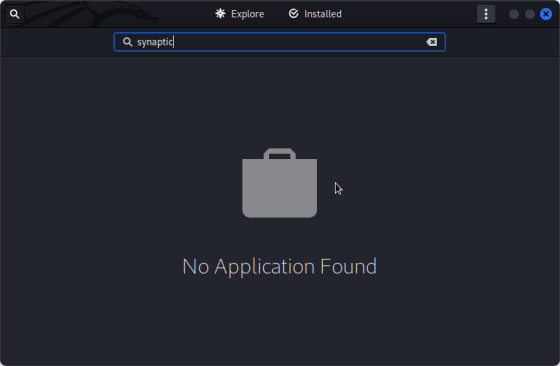
Though it is not installed by default, it is available in the main repository and all you need to do is install it. You may install applications on Linux Mint via the Linux command line, via Synaptic, the graphical package manager, via the mintInstall, the Software Manager, or directly from the menu. All methods of installation are easy. For this tutorial, let’s install it straight from the menu.